

Manage your Apache ActiveMQ brokers right from the terminal.
Browse messages. Manage queues. Monitor statistics. All within a modern TUI.






amqcli is a high-performance, Terminal User Interface (TUI) tool designed to simplify the management and monitoring of Apache ActiveMQ brokers. Built using Go and charmbracelet/bubbletea, it provides a fast, keyboard-driven alternative to web-based administration consoles.
By integrating Jolokia (JMX) and AMQP/STOMP protocols natively, amqcli offers a rich ecosystem of features without leaving your terminal environment.
flowchart LR
    %% Styles
    classDef default fill:#f9f9f9,stroke:#333,stroke-width:1px,color:#333
    classDef highlight fill:#e1f5fe,stroke:#0288d1,stroke-width:2px,color:#01579b,font-weight:bold
    classDef engine fill:#fff3e0,stroke:#f57c00,stroke-width:2px,color:#e65100,font-weight:bold
    classDef amqcli fill:#e8eaf6,stroke:#3f51b5,stroke-width:2px,color:#1a237e,font-weight:bold

    A["💻 User Terminal<br/>(Keyboard Actions)"]:::highlight -->|Interact| B("⚡ amqcli<br/>(TUI Engine)"):::amqcli
    B -->|Jolokia / JMX| C{"📦 Apache ActiveMQ"}:::engine
    B -->|AMQP / STOMP| C
    C -.->|Broker Stats<br/>& Messages| B
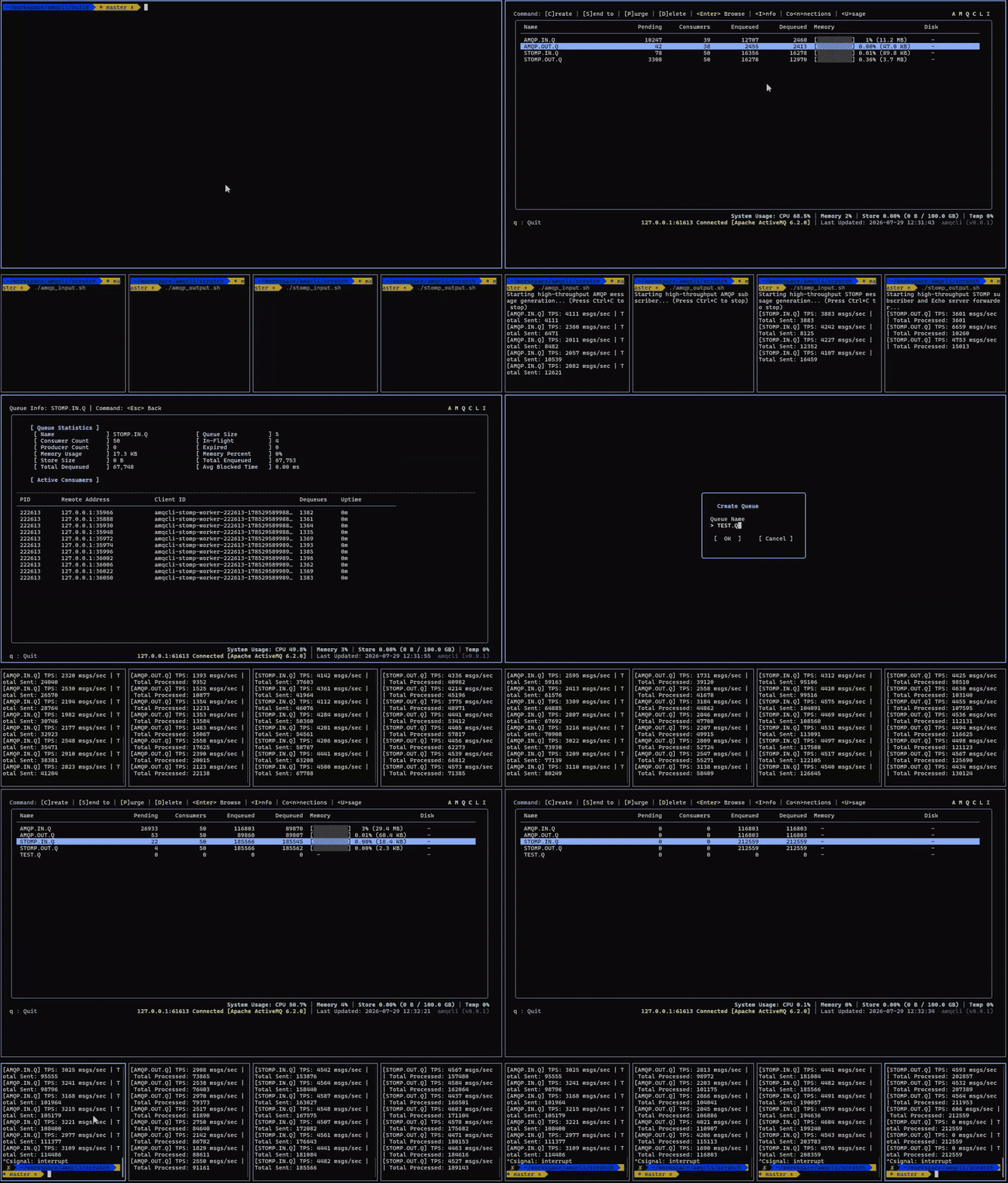
| TUI Experience | Modern, cross-platform terminal interface powered by Bubbletea, providing fluid navigation and color-rich Catppuccin themes with VT100 fallback. |
| Queue Management | List all queues, view consumer counts, enqueued/dequeued metrics. Support for creating, purging, and deleting queues. |
| Message Browsing | Browse messages inside queues directly from the UI, view detailed properties, payloads, and correlation IDs. |
| Message Sending | Quickly send messages to a target queue directly via AMQP 1.0 or STOMP protocols. |
| Broker Statistics | Toggle in-depth system usage (CPU, Memory, Disk) and broker storage limits directly on the queue list. |
| Advanced Deletion | Delete multiple messages at once or filter messages older than a specific time frame. |
| Connection Info | Inspect active client connections, remote addresses, and uptime to monitor broker health. |
amqcli is a statically compiled Go binary with no external dependencies required to run.
| Tool | Purpose |
|---|---|
| Apache ActiveMQ | Target broker to manage. Ensure Jolokia / REST API and AMQP/STOMP ports are accessible. |
You can install amqcli using one of the following methods.
You can easily install or upgrade amqcli using Homebrew via our custom tap:
brew tap xvlet/amqcli
brew install amqcliThe easiest way to install the latest release is by using the provided installation scripts for your operating system.
macOS / Linux (Shell)
curl -fsSL https://raw.githubusercontent.com/xvlet/amqcli/master/install.sh | shWindows (PowerShell)
powershell -ExecutionPolicy Bypass -c "irm https://raw.githubusercontent.com/xvlet/amqcli/master/install.ps1 | iex"If you have Go (1.25+) installed, you can easily install amqcli via go install:
go install github.com/xvlet/amqcli/cmd/amqcli@latestIf you don't have Go installed and just want to use the executable, download the latest pre-built release.
After downloading, extract the archive and run it:
tar -xzf amqcli_linux_amd64.tar.gz
chmod +x amqcli
./amqcli -hYou can run amqcli directly via Docker using our official image hosted on GitHub Container Registry (GHCR):
docker run -it --rm -v $(pwd)/config.yml:/app/config.yml ghcr.io/xvlet/amqcli:latestNote: Ensure that a
config.ymlfile is created in your current directory before running this command. If the file does not exist locally, Docker will incorrectly create and mount it as a directory.
amqcli uses a config.yml file to manage different environments (e.g., dev, prod). Place config.yml in the same directory as the executable.
# Example config.yml
refresh_interval: 1s
encoding: utf-8
environments:
  dev:
    protocol: "stomp"  # or "amqp"
    host: "${MQ_HOST:-127.0.0.1}"
    stomp_port: "61613" # optional (default: 61613)
    web_port: "8161"    # optional (default: 8161)
    username: "${MQ_USER:-admin}"
    password: "${MQ_PASS:-admin}"
  prod:
    protocol: "amqp"
    host: "10.0.0.5"
    amqp_port: "5672"   # optional (default: 5672)
    web_port: "8161"    # optional (default: 8161)
    username: "admin"
    password: "prod-password"
💡 Environment Variable Substitution You can use the
${ENV_VAR:-default_value}syntax withinconfig.yml. For example,${MQ_HOST:-127.0.0.1}tells the application to use theMQ_HOSTenvironment variable if it's set in your system. If it is not set, it will fall back to the default value127.0.0.1. This is highly useful for securely injecting credentials or host names without hardcoding them in the file.
# Run with default environment ('dev')
./amqcli

# Specify a different environment from config.yml
./amqcli -env prod↑/↓: Navigate items.Enter: Select / Browse Queue / View Message Details.Space: Multi-select messages in the message list.C: Create Queue.S: Send Message.P: Purge Queue (or open Time-based Delete in Message List).D: Delete Queue / Selected Messages.M: Move Message (in Message Details).R: Retry Message (in Message Details, useful for DLQ).I: View Queue Info & Statistics.N: View active Connections.U: Toggle System Usage (Memory/Disk/CPU).F3/Ctrl+F: Search messages.Esc: Go Back.q/Ctrl+C: Quit application.
If you are developing your own AMQP or STOMP clients and want amqcli to correctly display the Uptime and PID of your client connections (in the Connections N or Consumers views), you should format your client-id (STOMP) or ContainerID (AMQP) to include them.
amqcli parses the client ID using the following regular expressions:
- PID: A 4 to 8 digit number.
- Timestamp: A 10 to 14 digit Unix timestamp (Seconds or Milliseconds).
Recommended Format:
[Prefix]-[PID]-[UnixTimestamp]-[WorkerID (or DrainerID)]
Example (Go):
// 12345 = PID, 1698765432000 = Unix Milliseconds
clientID := fmt.Sprintf("my-worker-%d-%d", os.Getpid(), time.Now().UnixMilli())
By including these numeric blocks in your client ID, amqcli will automatically extract them and display beautiful monitoring metrics for your active clients!